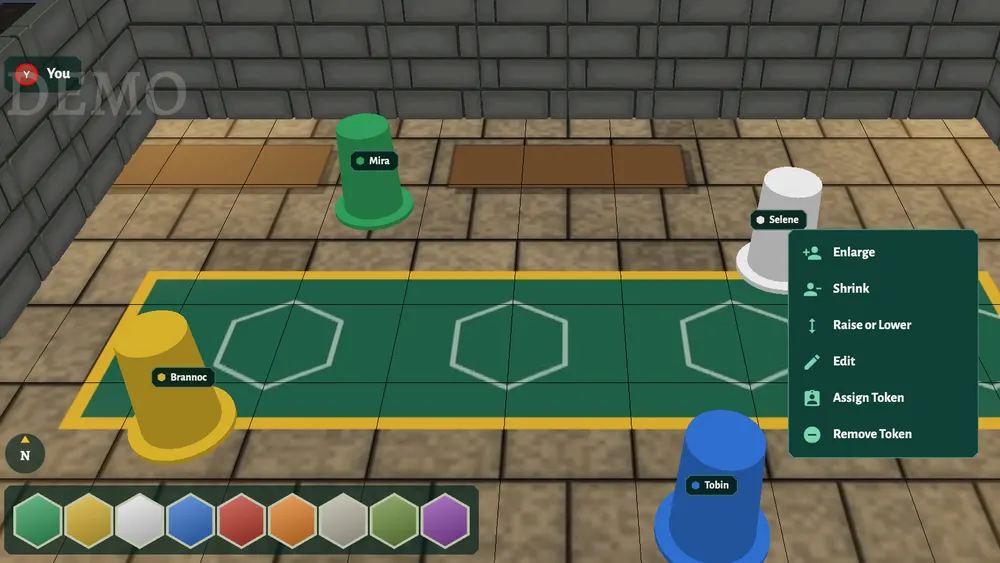
Tokens are the heroes, monsters and anything else that moves on the table in Dungeons. They stand up in 3D, so you can see who is in front of whom, and who is flying.
The host adds and edits tokens. Players move the tokens the host gives them.
Add a token
- Right-click the floor where the token should stand (on a phone or tablet, press and hold).
- Choose Add Token.
- Pick a token from the library. Open a folder to see what's inside; Coloured Pawns are plain pawns in every colour.
- The token appears where you clicked. Drag it to move it.
On Silver and Gold you can upload your own pictures with + New Token (PNG, JPEG or GIF, up to 1 MB). Bronze, the free plan, has the starter tokens in the library; Silver and Gold add the premium ones. See pricing for what each plan includes.
The token menu
Right-click a token to open its menu:
- Enlarge and Shrink change its size, for Large creatures and bigger.
- Raise or Lower lifts a token into the air for flying creatures, or lowers it again.
- Edit changes its name, size, colour, how far it can see (View Distance), and its Hit Points, Max Hit Points and Armour Class.
- Add to Initiative opens the initiative tracker beside the table and adds the token to the fight. Hit points changed in either place show in both.
- Assign Token gives the token to a player (below).
- Remove Token takes it off the table.
To move several tokens at once, hold Shift and drag a box around them.
Give a token to a player
- Ask the player to open the room, so their name is on the list.
- Right-click their token and choose Assign Token.
- Pick the player's name.
That player can now drag the token and see through its eyes (see fog of war). Players can only move tokens that belong to them, and they can't add, remove or edit tokens. The host and the token's owner see its hit points as a bar above it.
Move tokens
Drag a token to move it. By default it snaps to the grid when you let go; turn this off in Menu, Settings, Snap Token Position on Drag. Player tokens stop at walls and closed doors (see walls and doors).