
Your players join a game in Dungeons from a link you send them. It runs in the browser on a computer, tablet or phone, so there is nothing to install, and players don't need to pay for anything.
1. Create a campaign
- Create a free account, or sign in.
- Go to Dungeons. Under Create a campaign, type a name and click Create campaign.
- Your campaign opens in its first room. You are its host.
The free Bronze plan lets you host 1 campaign; Silver hosts 3 and Gold 10 (see pricing).
2. Copy the invite link
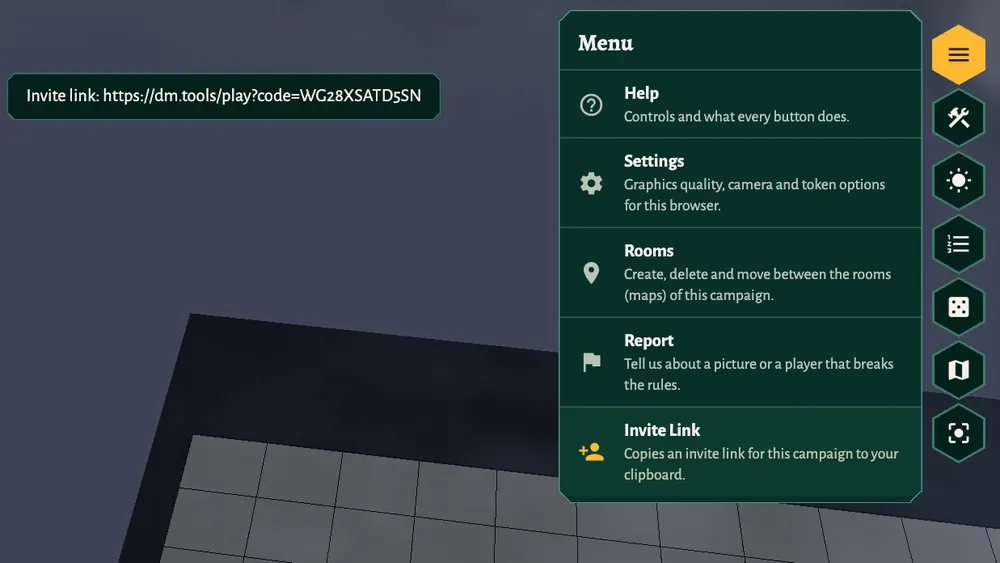
- In the campaign, open Menu on the right.
- Click Invite Link. The link is copied to your clipboard.
- Paste it into your group chat, Discord or email.
Each campaign has one invite link, and it doesn't run out. Anyone who has it can ask to join, so share it only with your group.
3. Your players join
- The player opens the link.
- If they are not signed in yet, they create a free account or sign in, then open the link again.
- They see the name of your campaign and click Join campaign.
Players can also type the code from the end of the link under Join a campaign on the Dungeons page.
The campaign now shows on the player's own Dungeons page. They open it from there next time; they don't need the link again.
A campaign can have up to 20 members, the host included.
4. Get ready to play
- Give each player their token: right-click it, Assign Token, and pick their name. See tokens.
- Their token's sight is what they see through the fog of war.
- Click Focus Players on the right to bring everyone's camera to what you're looking at.
Use your usual voice chat (Discord, a phone call, the same table) alongside it: Dungeons has no voice or video of its own.
Leaving a campaign
A player can leave a campaign from their Dungeons page with Leave. The host can delete the whole campaign there with Delete.